CACWT Learner FAQ | SPCC Help Center

CACWT Learner

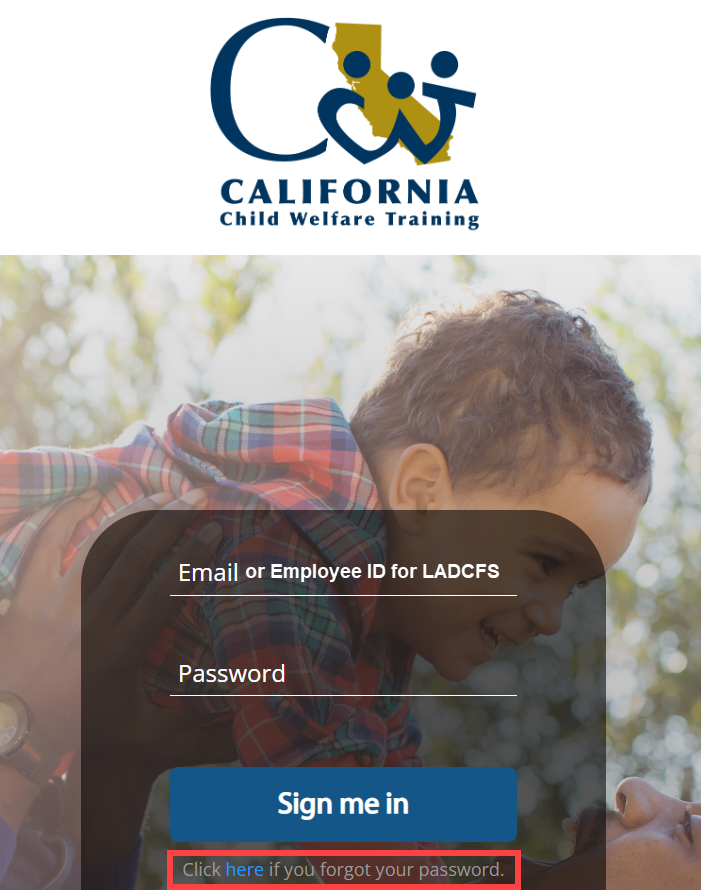
How to Log On
Accessing the CACWT (cacwt.dss.ca.gov) Website
Your Credentials:
Username: your county issued email address
If you are employed by LA County (LADCFS), your username is your employee ID (ex: e1233456)
If you are not a county employee and do not remember which email address you used, please use the Need Assistance? Button on the login screen
Password: If this is your first time logging in, click the reset password link
You will get an email from CACWT@geniussis.com with a temporary password
How to Submit a CACWT Support Ticket
Navigate to the CACWT Help Center (https://support.cacwt.org/portal/en/home
Scroll to the bottom of the page and click Submit a Ticket
A form will appear, give as much detail as possible here (including the support area, the course name and your county)
Review any support articles to find a resolution
CACWT Dashboard Overview
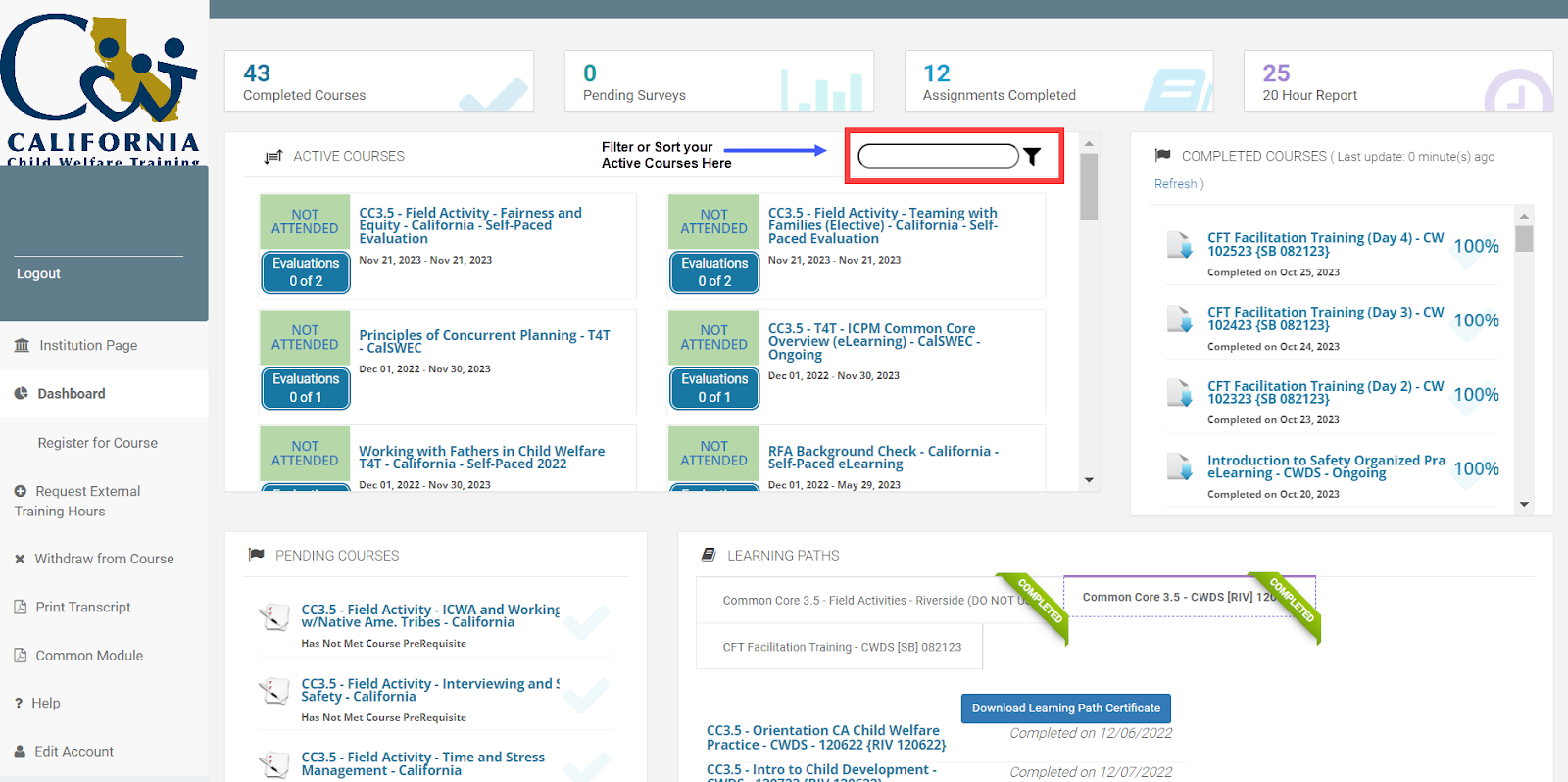
Active Courses Section
This section shows all trainings that have not been Completed. They either have not been Attended yet or there are Evaluations Pending.
The green box will indicate the status
The Blue Evaluations Box next to every class will show any Required Evaluations that will need to be completed.
If you click on the box, you will see if the evaluations are available for you to complete. If they are not, they will be available once you attend the class.
Clicking on the Course Name will take you to the Course Content Page in CACWT, where you can access Course Materials.
Complete Courses Section
This section shows all trainings that you have Completed (attended and completed all required evaluations).
Clicking on the name of the course will give you the option to Print your CACWT Completion Certificate
Pending Courses Section
This section shows all trainings that you are enrolled in but have not yet completed the Prerequisites.
If a Training has required prerequisites, they must be completed prior to the pending training date for you to end up on the roster.
Completion means Attended/ or Finished eLearning and Completed any required evaluations
Once you complete all required prerequisites, the course will move from this section to the Active Courses Section.
Learning Paths Section
This section shows any Learning Paths you are on. Learning Paths are used for those registered in a series.
Evaluations
Evaluations are required to be completed for every training in CACWT in order to receive credit
At a minimum, trainings that occur for Southern Counties will have two evaluations
The CWDS Feedback Assessment (link found on the Course Content Page)
The Statewide Satisfaction Survey or the General Course Acknowledgement (link found on CACWT Dashboard)
If neither of these surveys show, please reach out to the CACWT Help Center
Evaluation not showing as completed
This may take some time for Qualtrics to communicate with CACWT that the evaluation was completed
Submit a ticket to the CACWT Help Center if you are still not receiving a completed status within 24 hours of completing your evaluation
Cannot Locate Class in CACWT
If a training is not appearing in your Active Courses section and you are meant to be attending the training, please reach out to your County Staff Development Team.
Make Ups
Make ups are scheduled and managed by the county admins/ staff development. Please reach out to your county’s staff development to coordinate any makeups.
No Credits / Course Not on CACWT Transcript
Ensure that your course is showing under the Completed Courses area on your CACWT dashboard.
If the course is still under Active Courses, then you may need to complete the required Statewide Evaluations
Submit a ticket to the CACWT Help Center if you have completed all required evaluations and are still having issues with your CACWT Transcript.
Continuing Education Credits
If the training you attended was eligible for continuing education credits, you can access your certificate via the Academy’s LMS.
For any assistance, please submit a ticket to the Academy Help Center (apexsupport.sdsuacademy.org)
CACWT Course Content Page
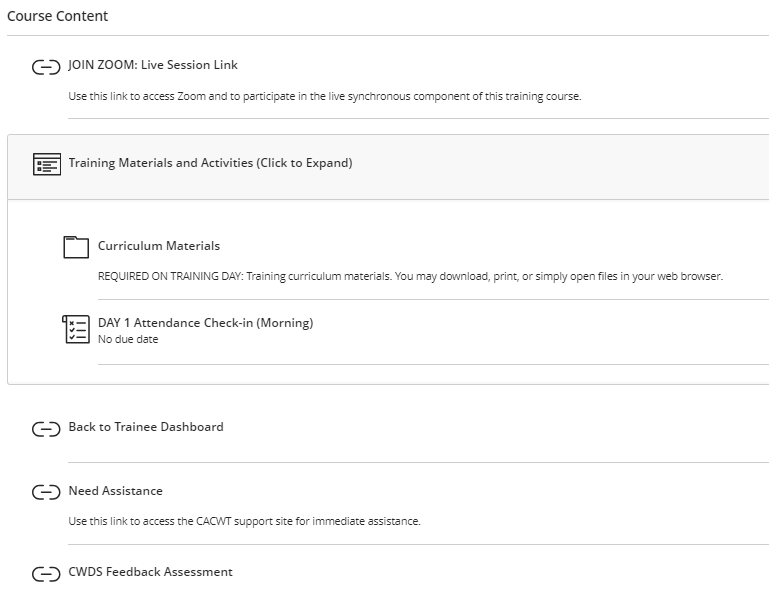
The Course Content Page in CACWT will have the Zoom Link, Materials, CWDS Evaluation Link, and Attendance Check Ins
Some items are made available at certain times during the day. If something is not appearing and it should be, refresh your web browser
Accessing Zoom Link For Virtual Trainings
Zoom links for Virtual trainings are available via CACWT once enrolled
Log in to CACWT (cacwt.dss.ca.gov)
Locate the Active Course Section on your Dashboard
Find your training for the day in the section
Click on the title of the training
You will be directed to the Course Content page in CACWT
The Zoom Link will be listed at the top of the page
If you are not enrolled into a class on CACWT, you will not be able to access the Zoom link
Completing Attendance
Log in to CACWT (cacwt.dss.ca.gov)
Locate the Active Course Section on your Dashboard
Find your training for the day in the section
Click on the title of the training
You will be directed to the Course Content page in CACWT
On the Course Content Page, locate the section titled “Training Materials and Activities”
Click on the heading and the section should expand
Attendance Check-Ins will be made visible and hidden depending on the time of day
If Attendance is open and you do not see it, refresh the page
Click on the Attendance Check In
A panel will pop up on the right side of your screen, at the bottom click the Black Button that says Start Attempt.
Answer the Attendance Check In Question
Click Submit in the bottom right corner and again on the Submission Confirmation pop up
Once you get the “Your submission was successful!” pop up, you have submitted your attendance properly
There is no need to Download the submission confirmation. You can close this page.
Accessing Materials During a Training
Log in to CACWT (cacwt.dss.ca.gov)
Locate the Active Course Section on your Dashboard
Find your training for the day in the section
Click on the title of the training
You will be directed to the Course Content page in CACWT
On the Course Content Page, locate the section titled “Training Materials and Activities”
Click on the heading and the section should expand
There will be a folder for materials, either with a link or with the files in CACWT
Accessing Materials Outside of a Training
Log in to CACWT (cacwt.dss.ca.gov)
On the CACWT Dashboard, locate the left panel and Click on Institution Page
There will be a section titled Welcome Trainees
Under that section click on the Curriculum Content Library
The Curriculum Content Library houses all state-standardized material
If you are looking for materials from a non-state-standardized training, please submit a ticket to the Academy Help Center (apexsupport.sdsuacademy.org)
Related Articles
CACWT: Viewing Attendance Submissions
CACWT | Service Providers Viewing Attendance Submissions in CACWT Purpose: To show Service Providers how to check Attendance Submissions in CACWT for the SPCC Model. Log into CACWT (https://cacwt.dss.ca.gov) The main page is the Learner Dashboard On ...How to Create Your Account on the SPCC Zoho site
Begin on SPCC Zoho site via https://spcc.support.sdsuacademy.org/portal/en/home In the top right corner, select Sign Up Fill out the following page with your Name, Email, and the info from the provided Captcha Image Verify your account creation via ...